








What You Can Do
Enroll coding agents
Assign a Claude Code, Codex, or OpenCode to any team member in a few clicks.
Setup instructions are generated automatically for them to get started immediately.
Track usage per member
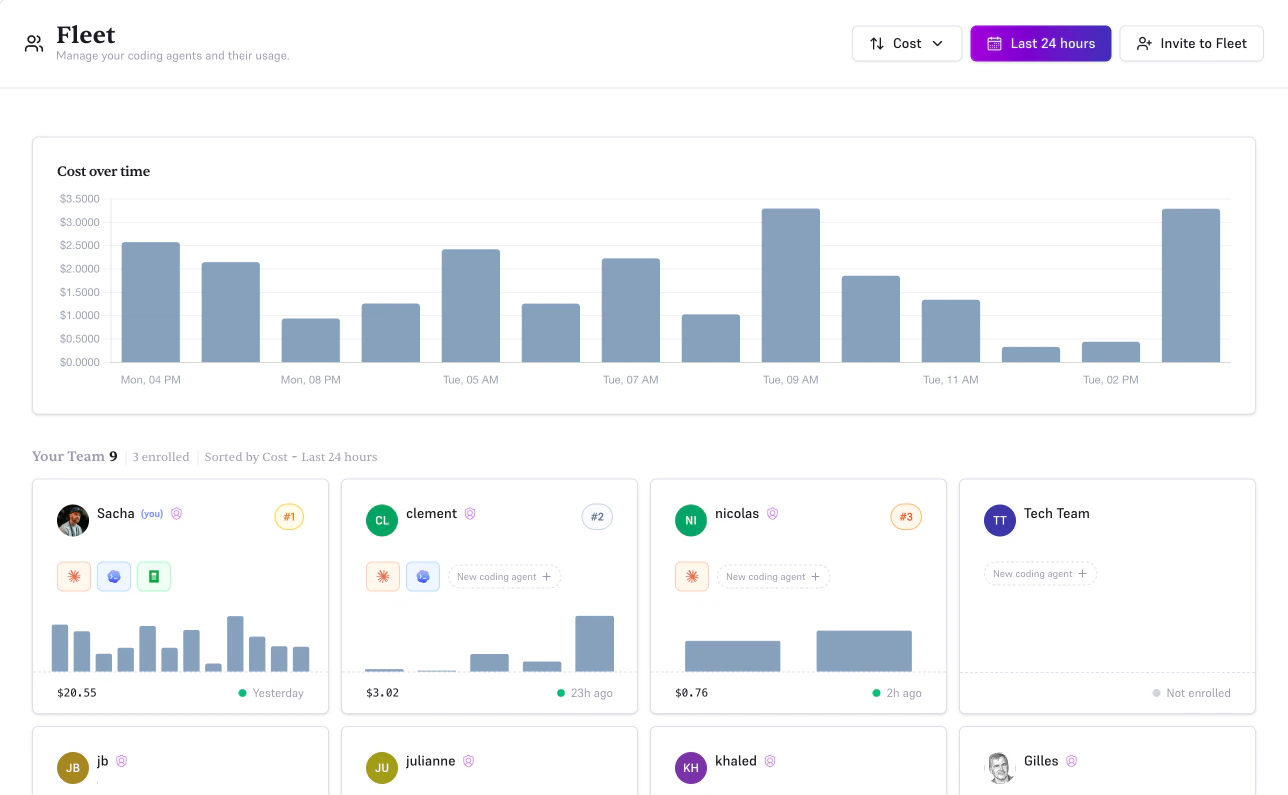
See how much each agent is spending, how many tokens it’s consuming, and how active
it has been, ranked by contribution and filterable by time range.
Auto-enable compression
Token compression is turned on automatically when you enroll an agent.
No manual configuration needed, savings start on the first request.
Manage keys centrally
Toggle compression, enable debug mode, reveal API keys, or unenroll an agent
without leaving the Fleet dashboard.
How It Works
Each organization member can have one agent type enrolled (Claude Code, Codex, OpenCode). These “coding agents” are linked to the member’s email address, that’s what groups agents into member cards on the Fleet dashboard. When you enroll an agent for a member, Edgee:- Creates a dedicated API key of the appropriate type
- Automatically enables token compression for that agent
- Generates ready-to-use setup instructions the member can run immediately
Getting Started
Invite your team members
Go to Fleet in the sidebar and click Invite a member. Enter their email address
and assign a role (Member or Admin). They will receive an invitation email and appear
as a pending card until they accept.
If the team member already has an account in your organization, skip this step, they
already appear in the member grid.
Enroll a coding agent
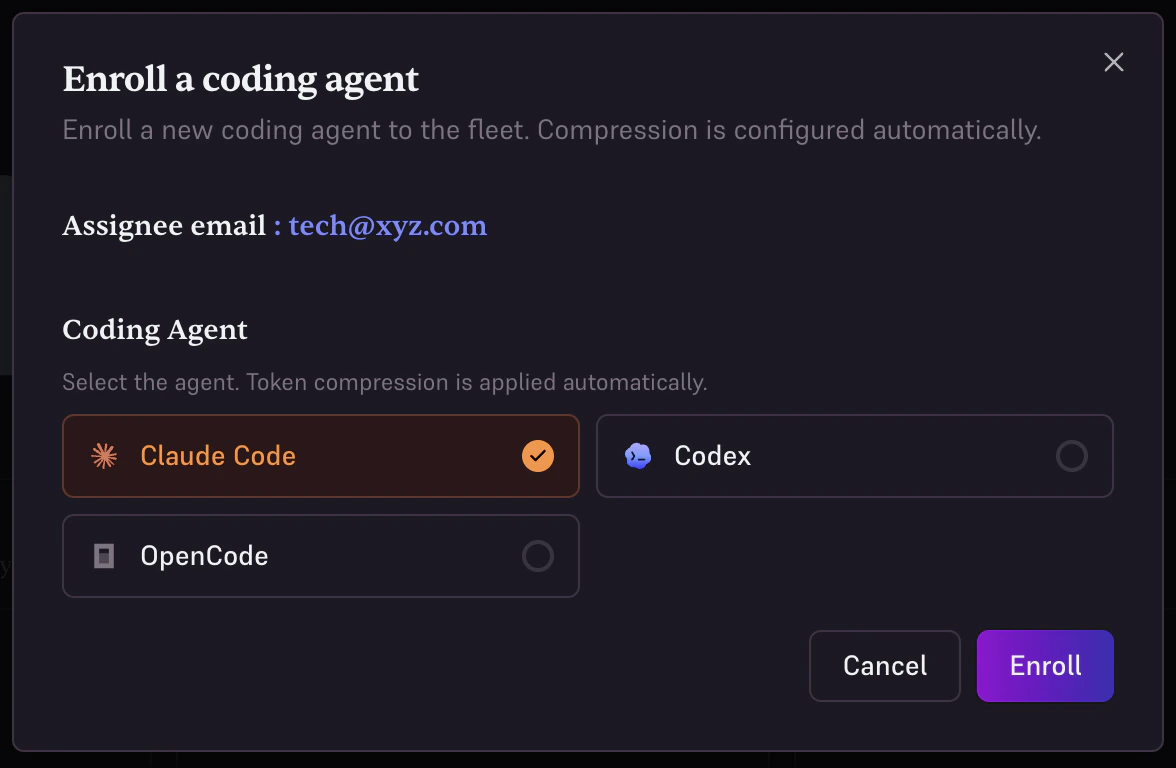
On a member’s card, click + New coding agent (or the enroll button on a pending
invitation card once they’ve accepted). Select the agent type: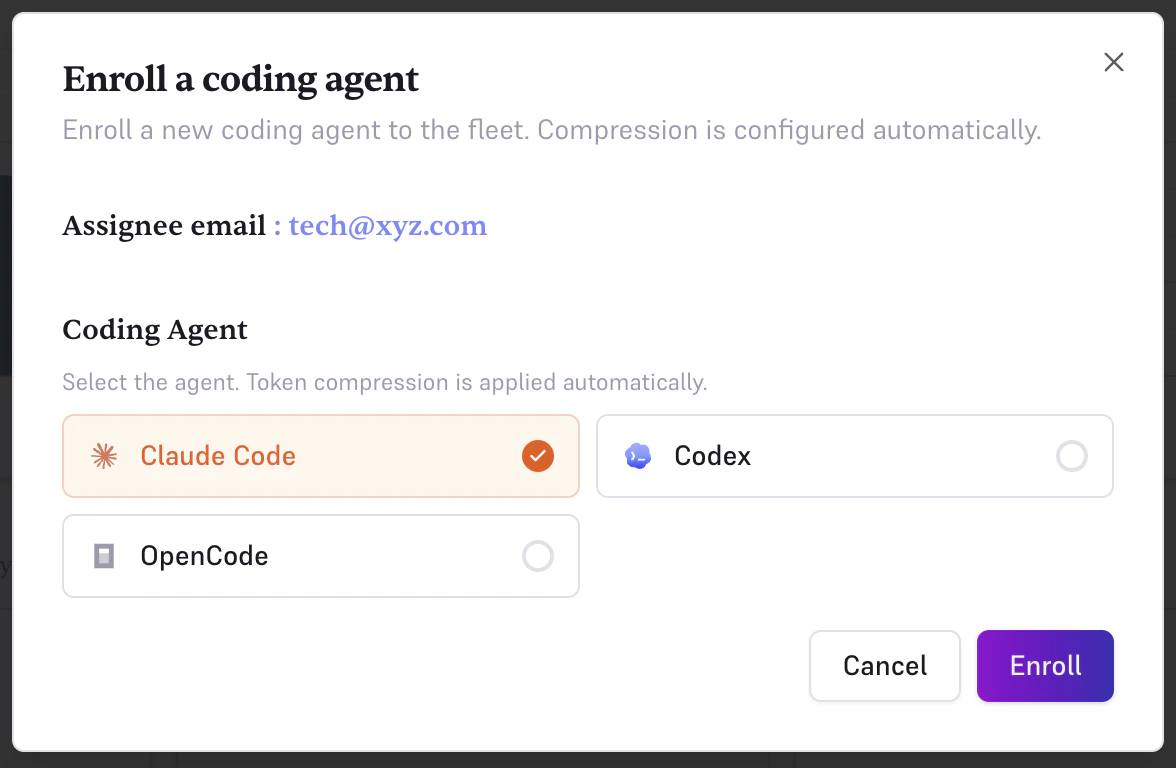
- Claude Code: Anthropic’s official AI coding CLI
- Codex: OpenAI’s software engineering agent
- OpenCode: open-source multi-model coding agent
Share setup instructions with the member
After enrollment, the dialog shows step-by-step instructions:
- Install the Edgee CLI
- Run
edgee launch claude(orcodex/opencode)
The Fleet Dashboard
Overview Chart
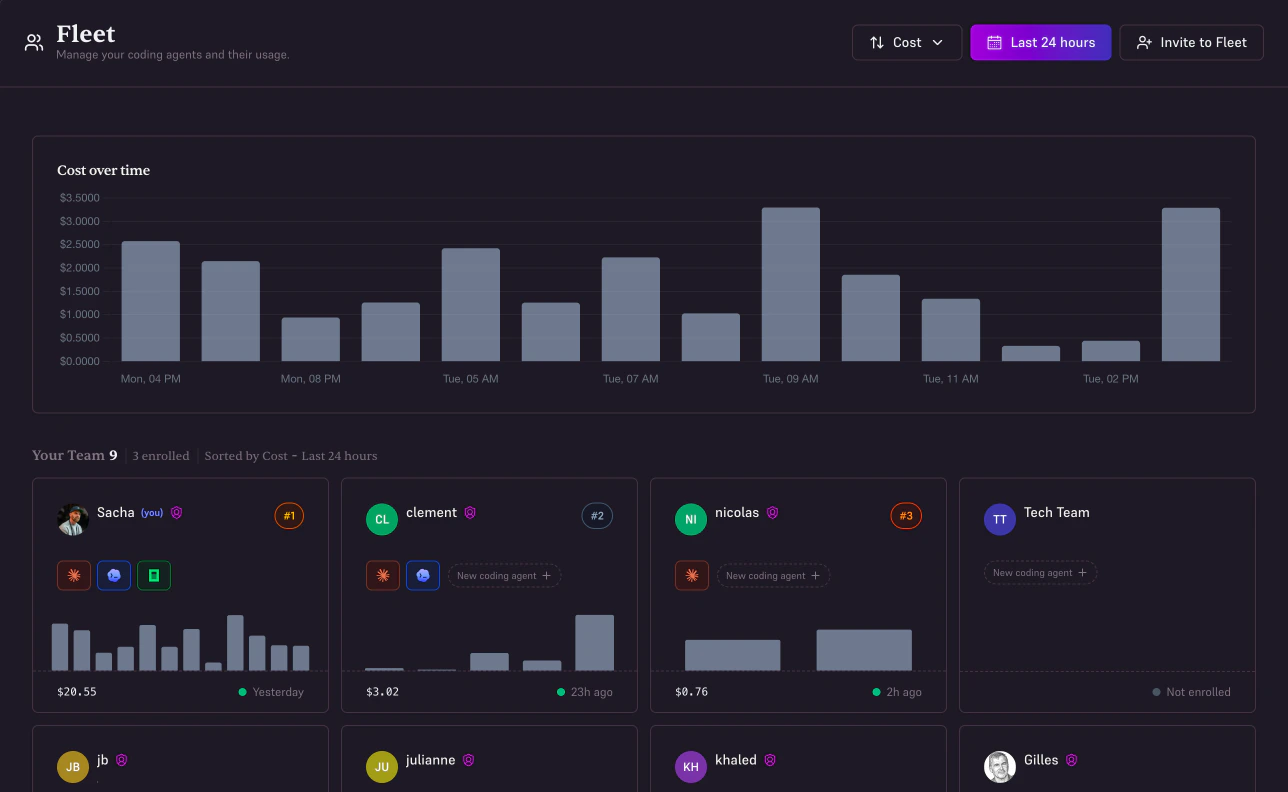
The top of the page shows an aggregated bar chart of your organization’s total AI usage over the selected time range. Hover over any bar to see the exact value for that period.Member Cards
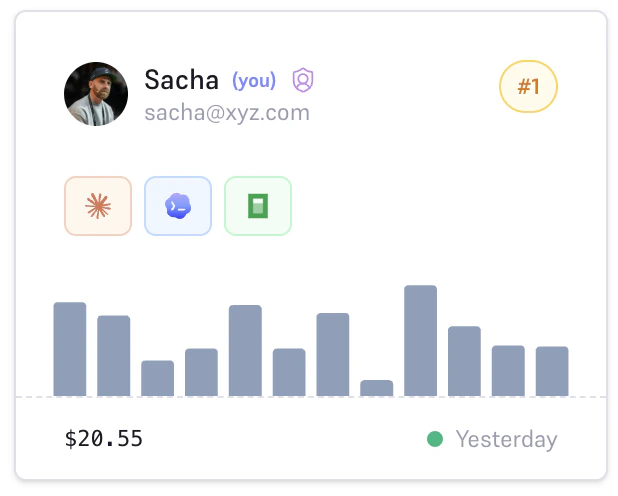
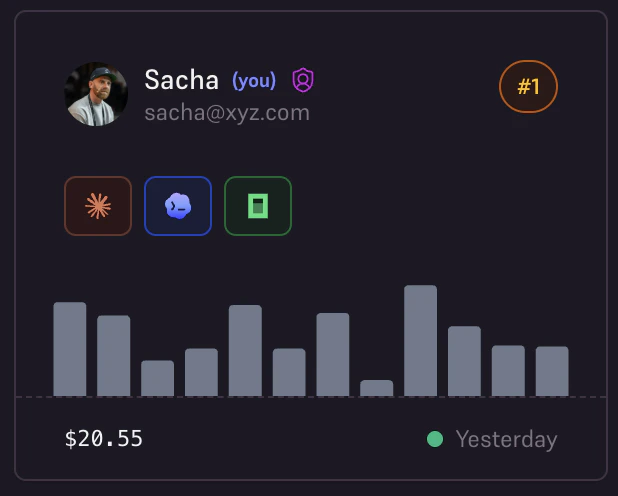
Each enrolled team member gets a card showing:- Agent badges: which coding agents are active for that member
- Rank badge: top 3 members by the selected metric receive a #1 (gold), #2 (silver), or #3 (bronze) badge
- Activity status: when the agent was last used (or a pulsing indicator if used in the last hour)
- Period metric: cost, token count, or request count for the selected time range
- Mini chart: a sparkline of activity distribution over the time range
Sorting and Time Range
Use the controls in the header to adjust what’s shown:| Control | Options |
|---|---|
| Sort by | Cost · Tokens · Requests |
| Time range | Last 24h · 7d · 30d · 90d · custom date range |
Usage Metrics
Fleet tracks three metrics per member and for the organization as a whole:| Metric | Description |
|---|---|
| Cost | Accumulated spend in USD for the selected period |
| Tokens | Total input + output tokens across all requests |
| Requests | Number of individual API requests made |
Managing Enrolled Agents
Click the settings icon on any agent badge in a member card to open the management dialog.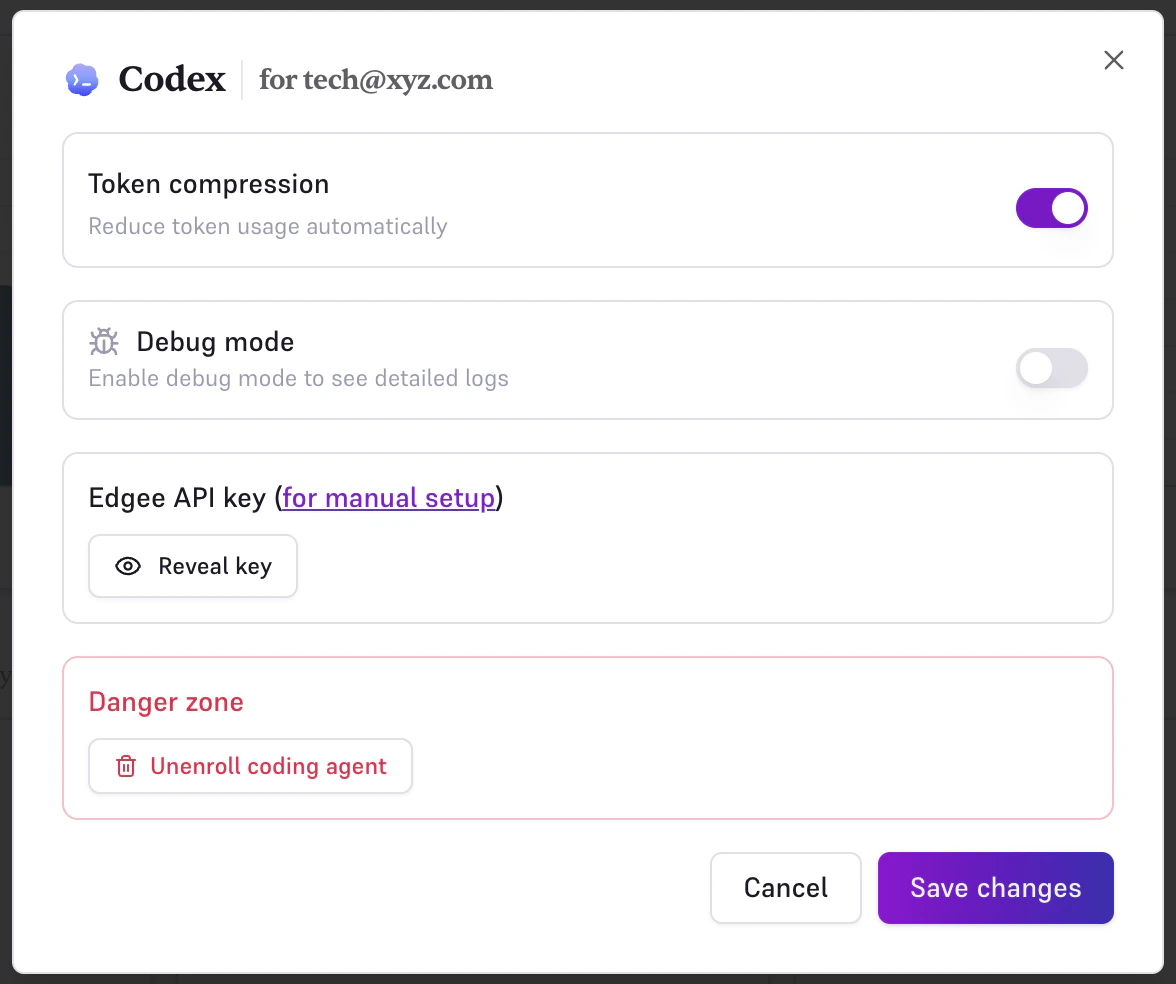
Token Compression
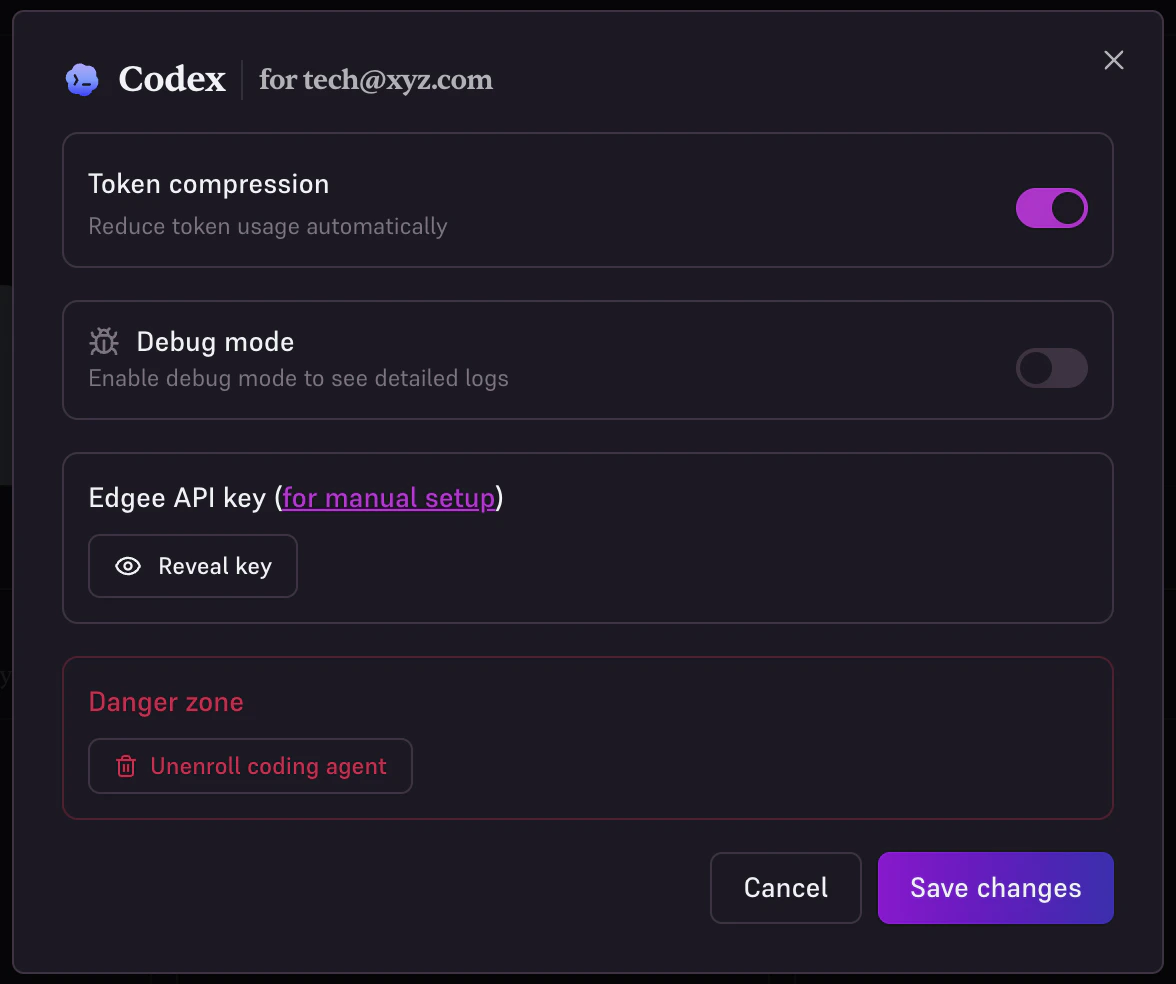
Toggle agentic token compression on or off for this specific key. Compression is enabled automatically on enrollment, you can disable it here if needed for a particular member or agent.Debug Mode
Enable debug mode to capture full request and response payloads for this key. Useful when a team member reports unexpected behavior, debug logs appear in the Logs page with a bug icon for easy filtering.Debug mode captures raw request data. Enable it only temporarily and for specific keys,
as it may capture sensitive prompt content.
Unenrolling an Agent
To remove a coding agent key, click Unenroll coding agent in the management dialog. You will be asked to confirm. Unenrolling permanently deletes the API key, the member will need to be re-enrolled with a new key to use the gateway again.Next Steps
Edgee CLI
Learn how team members use
edgee launch claude to start a session through the gateway.
Agentic Compression
Understand how token compression works and how to tune compression rate and semantic threshold.
Observability
Explore session-level logs, request traces, and cost breakdowns across your entire team.
Alerts & Budgets
Set spending limits and receive alerts when a member or the organization exceeds a threshold.