

Configure shared settings
As an administrator, open Org. Settings → Gateway. Set organization-wide rules here; use squad or agent settings for changes that should affect a smaller group.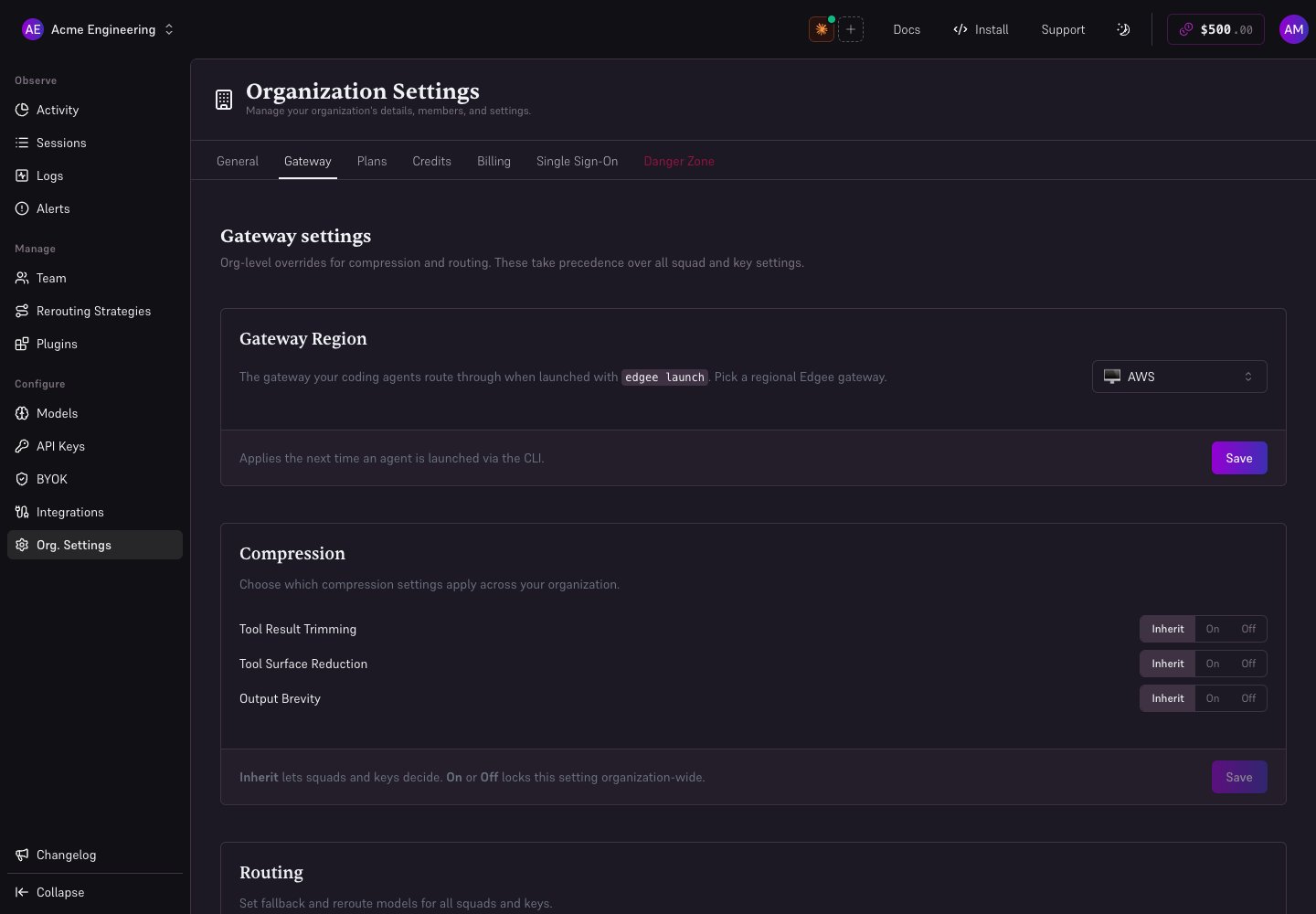
Local demonstration with fictional data.
Understand On, Off, and Inherit
Both On and Off can lock a setting for a squad or agent. Choose Inherit to delegate that decision.
Compression and shared gateway settings resolve from organization → squad → key: the highest scope that explicitly sets a value wins. Strategy assignments also support members: organization → squad → member → key.
On routing lists, Inherit lets lower scopes decide; Custom enforces the selected configuration. A Strategy takes over routing for its effective scope, including its fallback configuration.
Spending limits are checked separately across scopes. A Strategy and a hard usage limit cannot coexist on the same scope.
Choose what to configure
Region and custom endpoint controls select which gateway the CLI uses on its next launch. See CLI configuration.