

The content types offered by the editor and their support in each agent can differ. Use the agent-specific preview and your installed CLI’s help to check the available behavior.
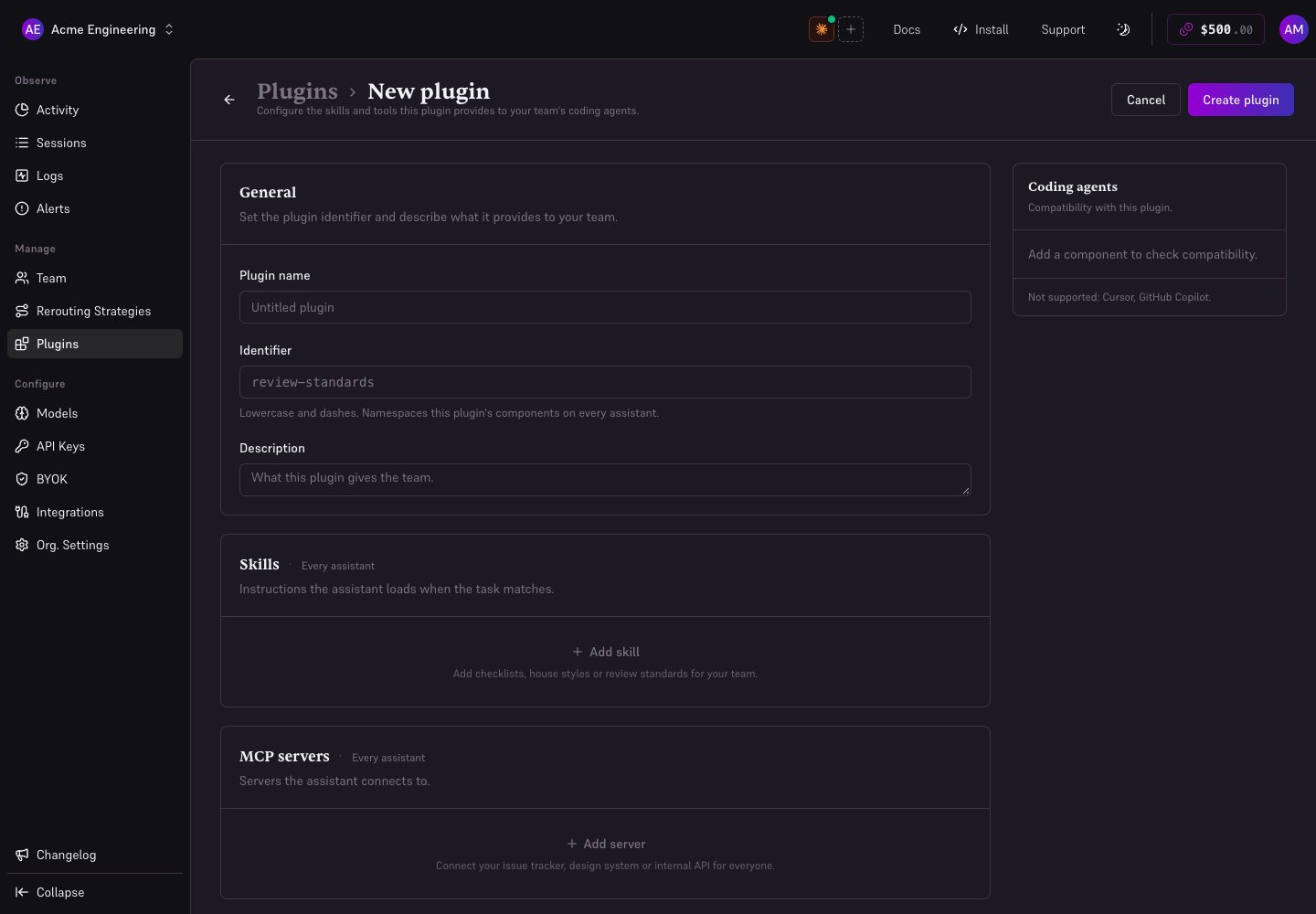
Local demonstration with fictional members and illustrative usage data.
Create a plugin
- Open Plugins → Create plugin as an administrator.
- Give it a display name, a lowercase identifier using dashes, and a description explaining when your team should use it.
- Choose Add skill. Enter a name, description, optional When to use, and the Markdown instructions.
- Add other supported content, such as MCP servers, only when needed. If Hooks or Subagents are available, review their behavior for the target agent before distributing them.
- Inspect the agent-specific file preview and choose Create plugin or Save changes.
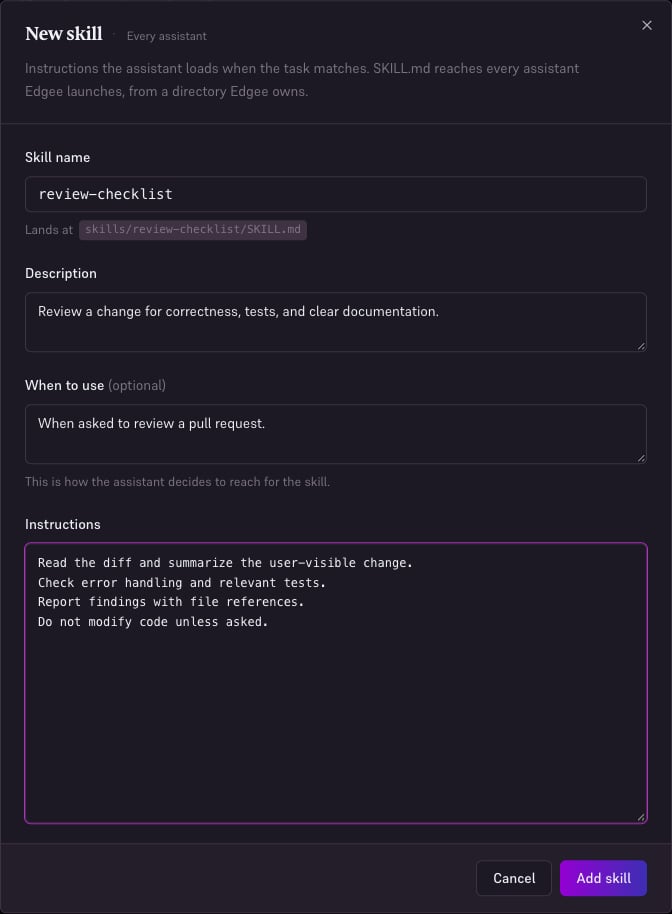
Local demonstration with fictional data.
Assign recipients
Open the plugin’s distribution action, choose the whole organization, selected squads, or selected members, and Save. Review the recipient count before saving. Squad membership affects who is targeted.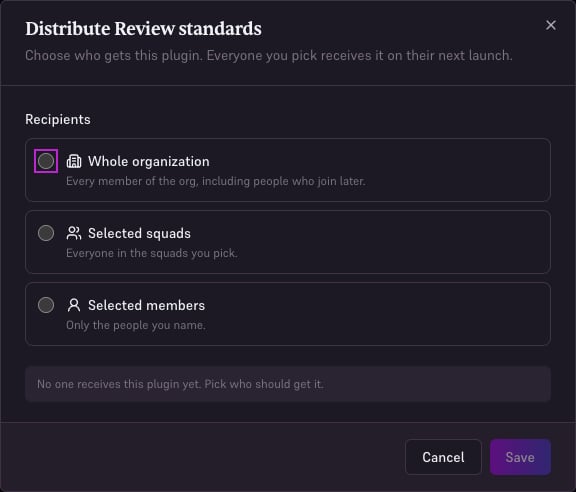
Local demonstration with fictional data.
Verify on a developer machine
edgee plugins list is the explicit listing command. Use edgee plugins list --verbose to see individual components and why content is not delivered. The CLI list does not let a member opt out of an administrator’s assignment.
Update or stop distribution
Edit the plugin, save the change, and verify it in a fresh agent launch before widening its assignment. Use the distribution dialog’s stop-distribution action when it should no longer be assigned. Check the result on a new launch; do not assume a running agent reloads content immediately.Troubleshooting
- Plugin missing from the list: check profile, organization, and membership in the assigned squad.
- Plugin listed but a tool missing: inspect the target agent’s preview and supported content types; check MCP prerequisites and credentials.
- Old content: save the plugin, start a new launch, and inspect the CLI’s synchronization result.